3D Touch Previews on a table or collection
- Nheng Vanchhay
- Aug 25, 2021
- 2 min read

Previews on a table or collection
This type of preview is perfect for photos, but more often you’ll display these in a collection view. Let’s take a look at how we can configure a preview with a specific image, and end up with a beautiful photo preview for a collection of photos, along with a different (somewhat plain 😅) detail view controller:

The main concept is the same as when we’re previewing a single view. However, this is where our menu’s identifier comes into play. Since we’re not pushing our previewed view controller, we need a way to construct a new detail view controller for the correct image. You may have noticed that the menu configuration is passed into willPerformPreviewActionForMenuWith - if we set an identifier for our image when setting up the configuration, we can use that to create our detail view:


Table view menu configurations can be similarly set up to pass a model identifier around to the various menu functions.
Important: For the same reason we don’t use an index path in an action closure, you should never use an index path as an identifier. The underlying data of your collection or table could change before the user taps on the preview, so always pass a model or model identifier.
UITargetedPreview ❤ previewProvider
Let’s say that we wanted to use a previewProvider to display a different view than what we see in the cell. It would be really nice if we could animate from the image view, instead of from the whole cell (the default behavior). It turns out you can use UITargetedPreview to do just that:

In order to accomplish this, we’ll specify a previewProvider when creating our menu configuration. PreviewViewController displays the SF Symbol and name like you see above, and sets a preferredContentSize so it hugs the icon and label.
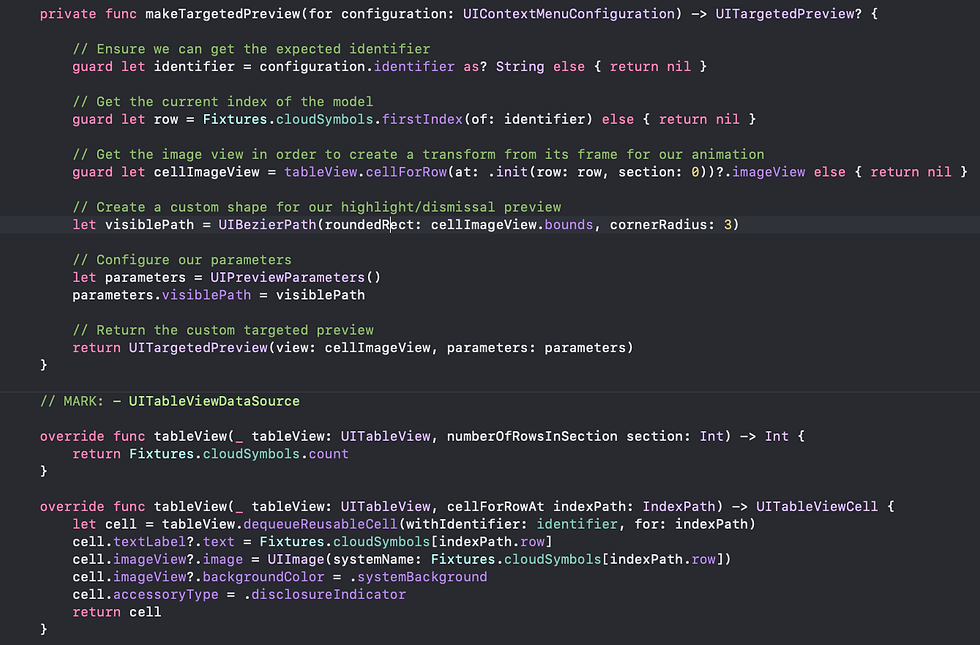

Not too bad! Now we have a great animation for our preview from the original image.


Comments